Automation
A workflow starts on an event and performs actions on its own: creates a task, sends an email, moves an opportunity to another stage, posts a notification to Telegram.
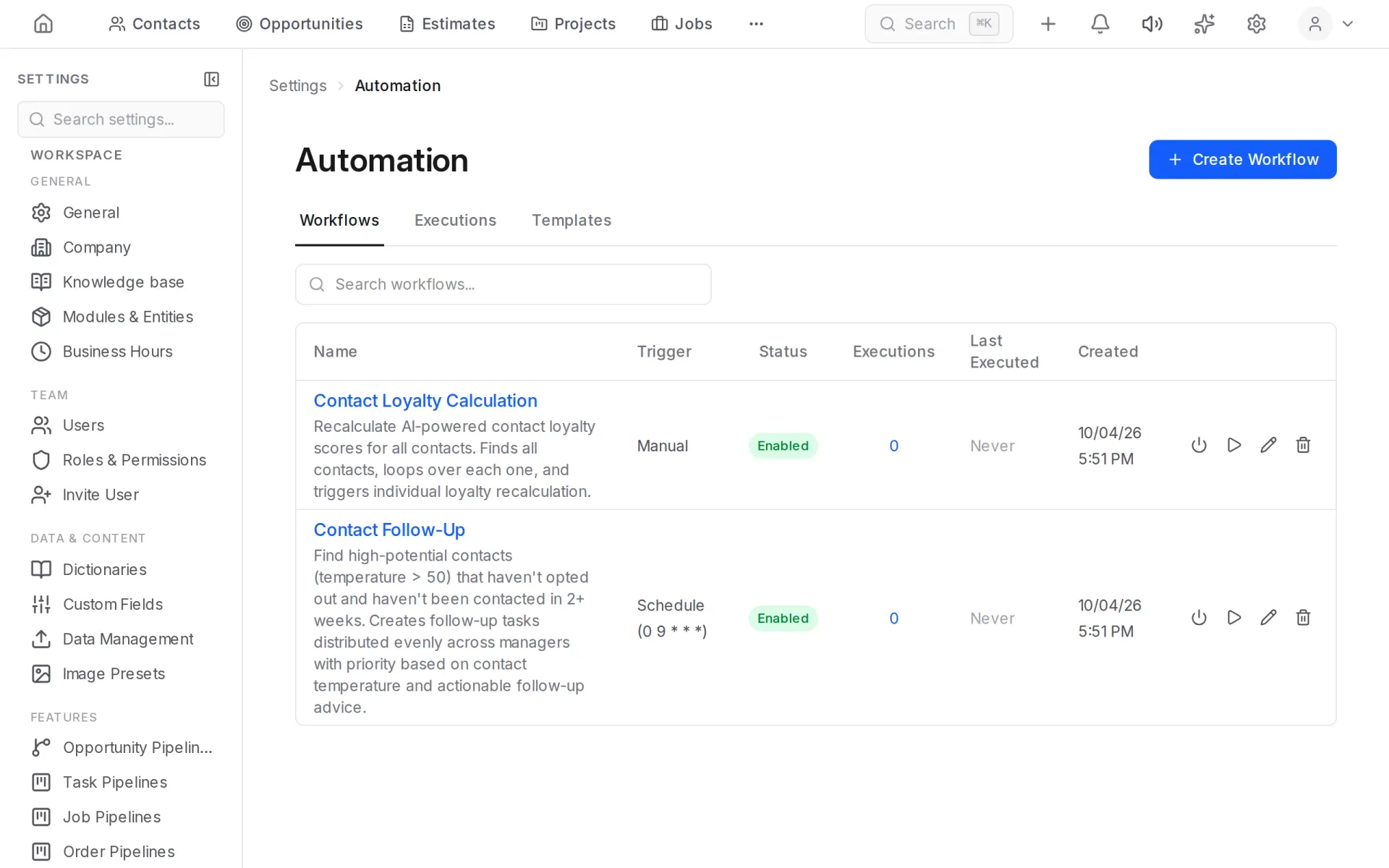
Workflows are in Settings → Automation.
Examples
- A new request arrives → create a task for a manager and notify them.
- An opportunity moves to "Estimate sent" → remind the customer in three days.
- Every morning → find contacts nobody has talked to for a while and create call tasks.
- A call ends → send a short summary to the owner in Telegram.
What starts a workflow
| Trigger | When it fires |
|---|---|
| Event in the system | A record is created or changed: contact, opportunity, invoice, call |
| Schedule | At a set time: every day, week, hour |
| Manual | When you press run |
| External request (webhook) | Another system sends a request to the workflow's address |
Creating a workflow
- Click Create Workflow, or pick a ready one on the Templates tab.
- Choose what starts it.
- Add steps: a condition, an action, a delay, a call to AI.
- Test the workflow and switch it on.
Testing
Each step can be run on its own with test data, so you see where the workflow goes wrong without running all of it.
Run history
The Executions tab shows every run: when, how it ended, and the input and output of each step.
Switching on and off
A workflow is switched on and off with the toggle in the list. A disabled workflow is kept as it is but does not fire.
For developers
Workflows can call external services and be started by them. Webhook addresses, API tokens and connections to external systems are in the Developer part of settings; see the API reference.